Setting Up Copilot in Outlook
Configure Microsoft Copilot Agent within Outlook to enable automated email assistance.
Enabling Copilot
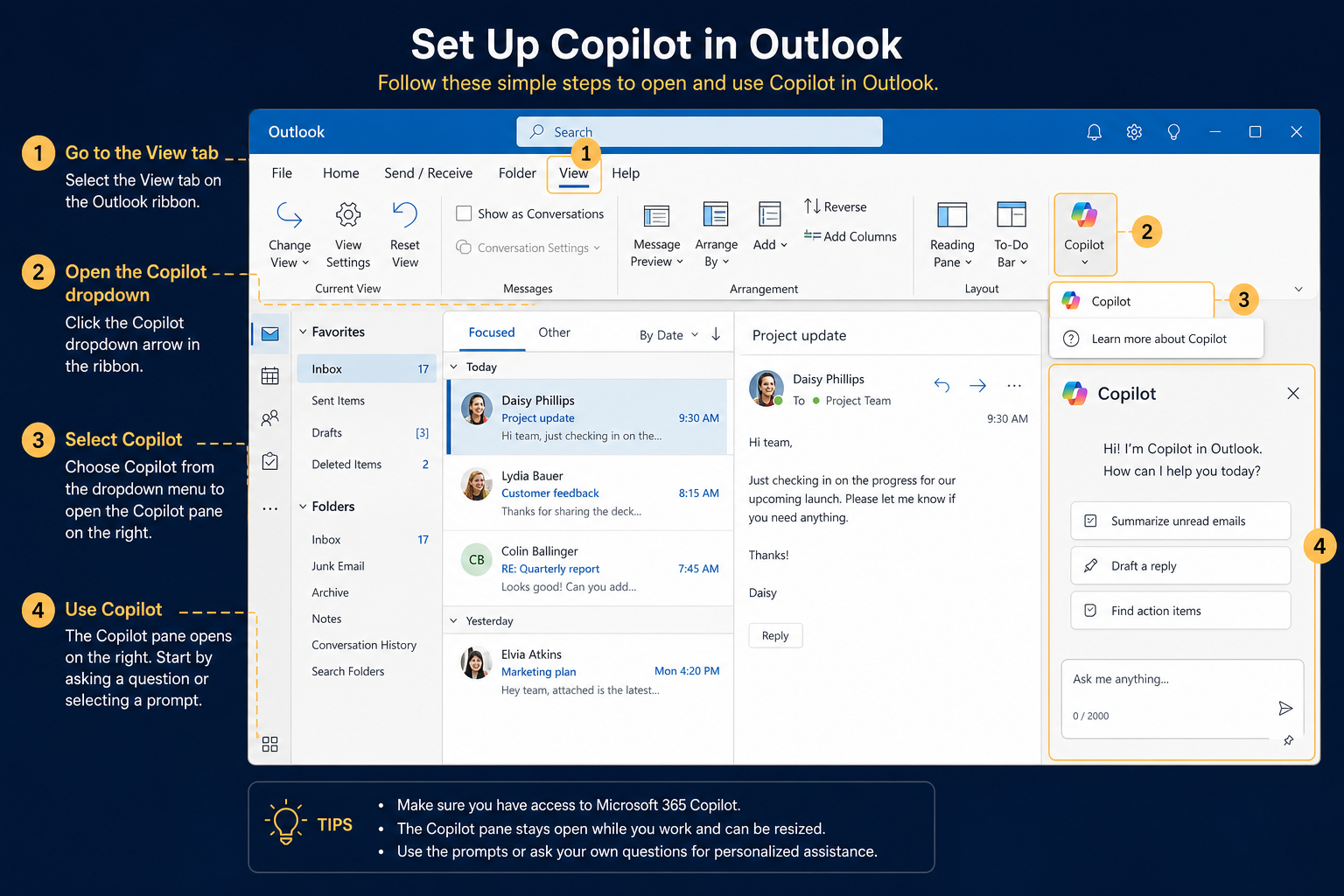
To enable Copilot, you must first locate the 'View' tab in Outlook. This tab controls how the Outlook interface is displayed.
Within the 'View' tab, you'll find a 'Copilot' option. Clicking this option activates the Copilot pane on the right side of your screen.
Copilot in Outlook transforms your inbox from a task list to an automated workflow.
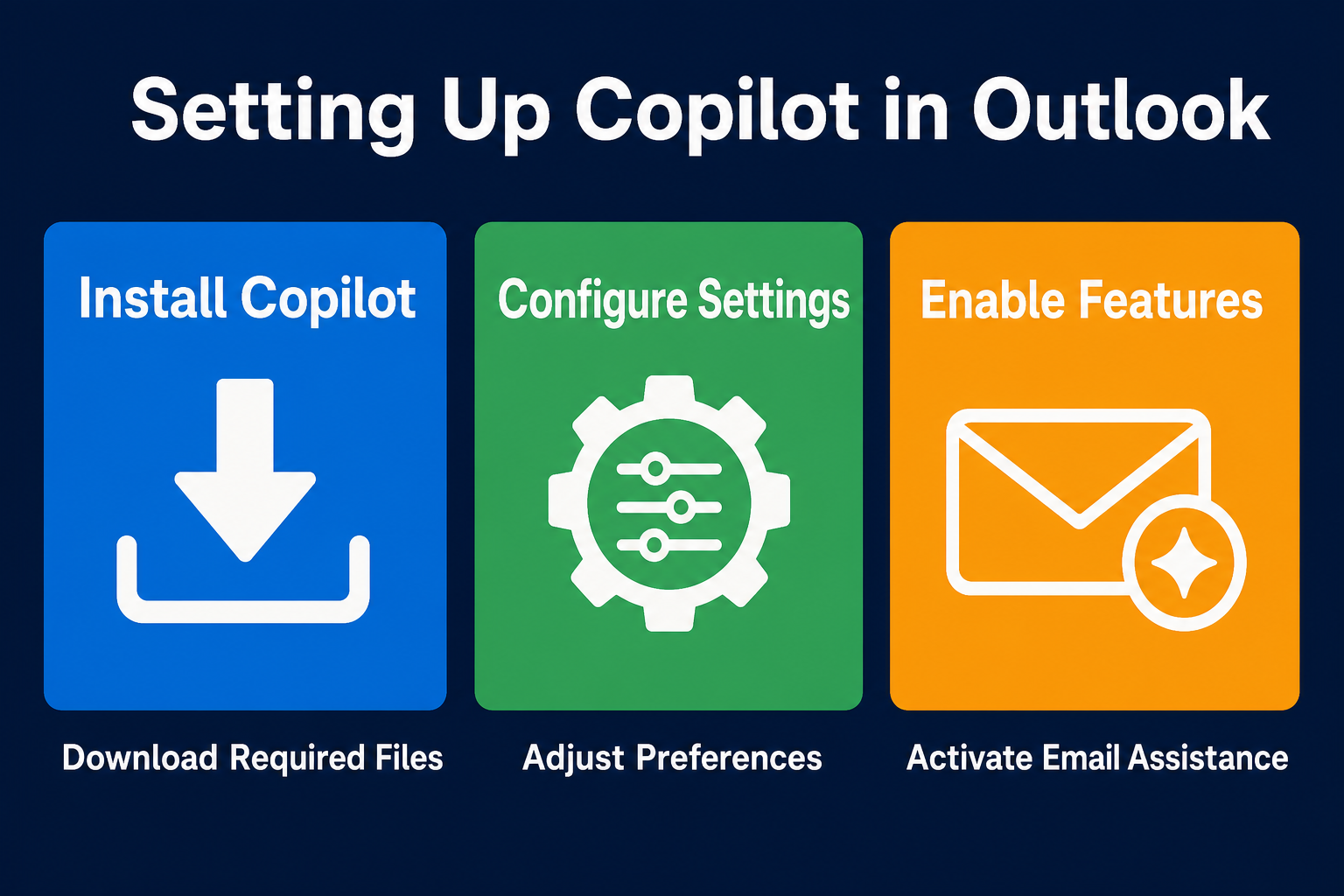
This diagram breaks down the core building blocks of Setting Up Copilot in Outlook so you can see how each part connects.
This setup is the foundation for all the automated assistance it provides.
Copilot Setup in Outlook
See how to activate Copilot within Outlook.
After enabling Copilot, what is the FIRST thing you'll be able to do?
Copilot in Action
Using the Copilot Pane
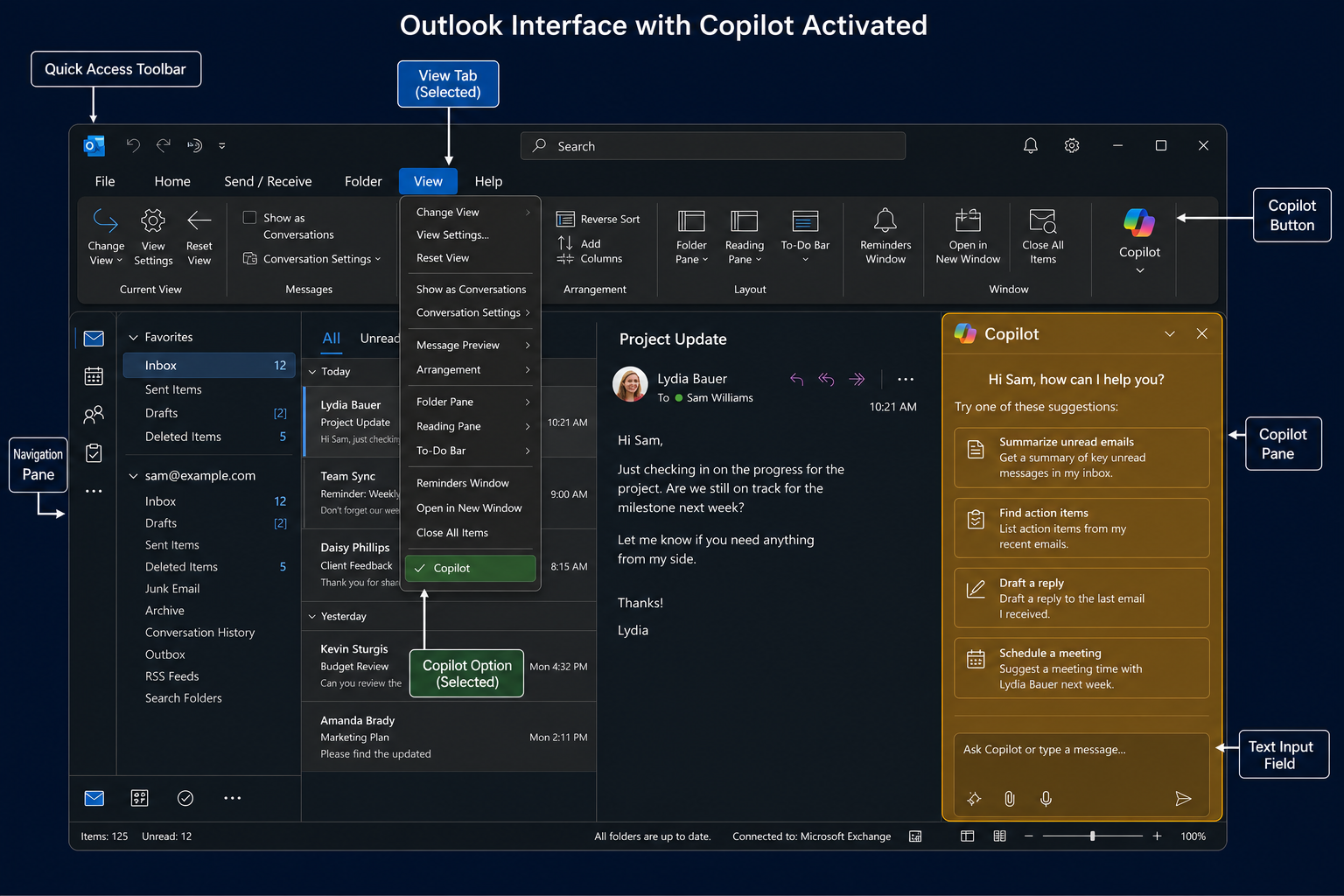
The Copilot pane is where you interact with the agent. Here, you can enter prompts and receive AI-generated assistance.
Copilot can help you draft emails, summarise conversations, and find information quickly, all within this pane.
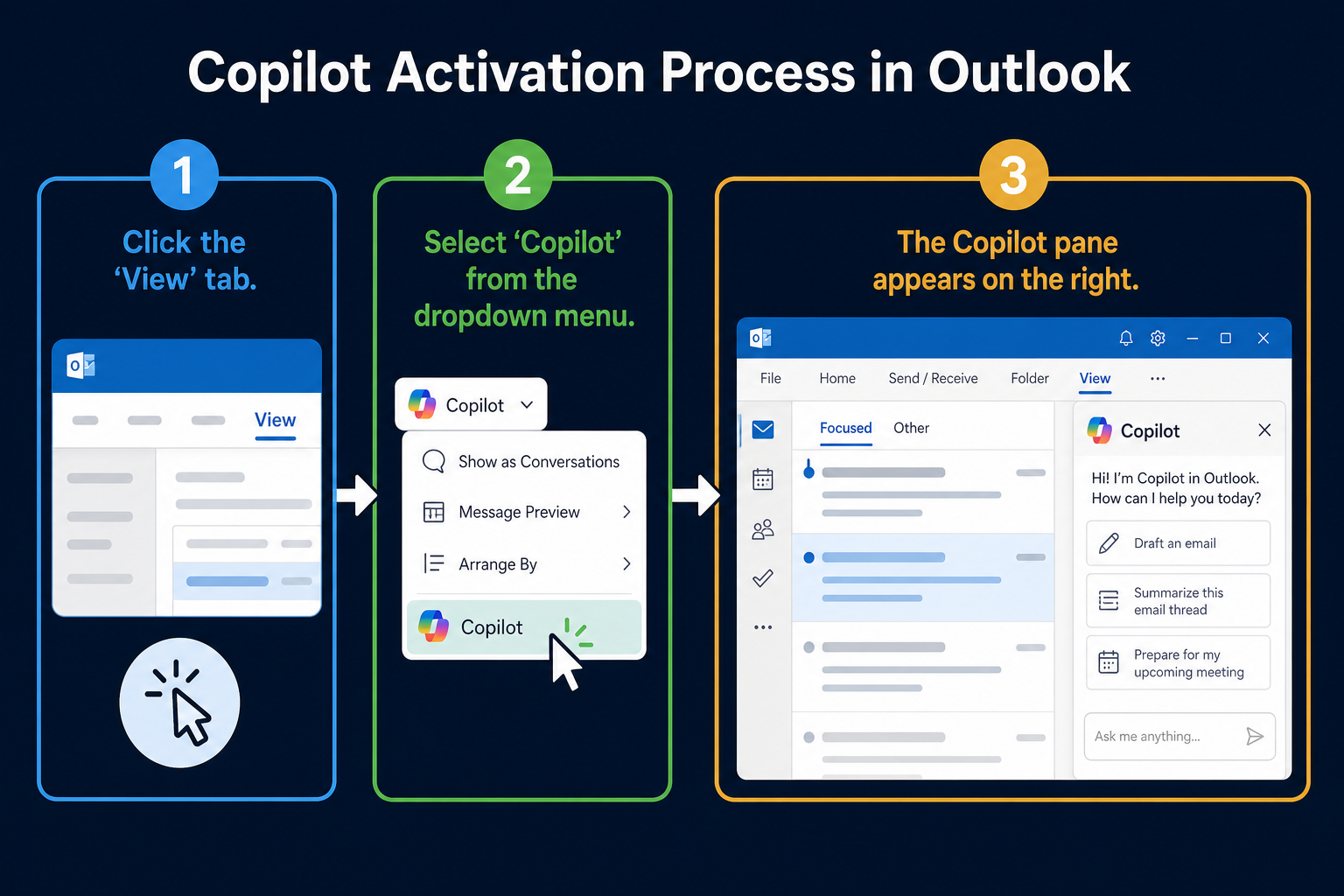
This diagram shows the straightforward process of enabling Copilot in Outlook. Following these steps ensures Copilot is ready to assist with your email tasks.
Manual vs. Automated Email Management
This contrast highlights the clear advantages of using Copilot for email management. Copilot automates tasks that are traditionally manual, saving time and improving accuracy.
Copilot provides immediate help with email drafting and summarisation. This saves time and reduces effort.
By automating email tasks, Copilot minimizes errors and improves the quality of your communication.
Copilot simplify your email workflow, allowing you to focus on more important tasks.
This demonstrates how Copilot can quickly draft emails based on your prompts. This greatly speeds up your email communication.
Drafting Emails with Copilot
Watch Copilot generate an email from a simple prompt.
Next Steps
Now that you've configured Copilot in Outlook, you're ready to explore its full range of capabilities. Start by drafting a few emails with Copilot's assistance to get a feel for how it works.
Experiment with different prompts – short, long, specific, and general – to see how Copilot can best help you manage your inbox more efficiently and effectively. This sets the stage for deeper integration and automation.
If you remember only four things…
View Tab
Copilot is activated via the 'View' tab in Outlook. This is the first step in enabling its features.
Copilot Pane
The Copilot pane is where you interact with the AI agent, inputting prompts and receiving assistance.
Email Drafting
Copilot can draft emails quickly based on simple prompts, automating a significant portion of your email workload.
Increased Efficiency
Using Copilot saves time and improves accuracy in email management, simplify your overall workflow.
Test Your Understanding
Ask Copilot Setup Requirements
Write a prompt for Copilot in Outlook asking for the necessary prerequisites to ensure it functions correctly.
You're about to configure Copilot in your Outlook desktop application but want to ensure all preliminary steps are covered. You need to know what Microsoft 365 license is required, if there are any specific Outlook version requirements, and what initial settings might need to be enabled in the Microsoft 365 admin center. Your goal is to get a comprehensive list of setup prerequisites.
Term Glossary
4 verified conceptsOutlook Automation Enabled
You now understand how to configure Copilot in Outlook and enable automated email assistance. This understanding allows you to manage your inbox more efficiently and accurately, freeing up time for other tasks.
Copilot transforms your reactive email management into a proactive and efficient process, saving you time and effort.
Next, you'll learn how to use Copilot to summarise long email threads, further enhancing your email management capabilities and improving your workflow.
Audio lesson recap
A concise audio summary of this lesson — great for reinforcing key concepts on the go.
Hear it discussed
About three minutes on the ideas in this lesson
Sterling
AI tutor
Vivienne
Sceptical challenger
Press play to start the discussion…
Full transcript · click any line to jump
Activate Copilot via Outlook's View Tab
To enable Copilot, navigate to the 'View' tab in Outlook and select the 'Copilot' option. This action will display the Copilot pane on the right side of your screen, ready for interaction.
Interact with Copilot in its Dedicated Pane
The Copilot pane is your central hub for AI assistance, allowing you to input prompts for drafting emails or summarising conversations. Experiment with various prompt types to maximise its efficiency in managing your inbox.
Boost Productivity with Automated Email Tasks
Copilot transforms email management by automating drafting, summarising, and organising, saving significant time and improving communication accuracy. Embrace its capabilities to streamline your workflow and focus on higher-value tasks.
Ask anything about Setting Up Copilot in Outlook. Sterling will answer — concisely, and with his customary level of patience.