Install and Configure Claude Code
Learn how to install and configure the Claude Code plugin in Cursor IDE. Set up your API keys and customise basic settings.
Installation Steps
Begin by opening Cursor IDE and navigating to the extensions marketplace. Search for the 'Claude Code' plugin and click 'Install'.
Once the plugin is installed, you'll need to configure it with your plugin installation. It allows the plugin to access Claude Code's services.">API key. Obtain the plugin installation. It allows the plugin to access Claude Code's services.">API key from the Claude Code website after registering an account.
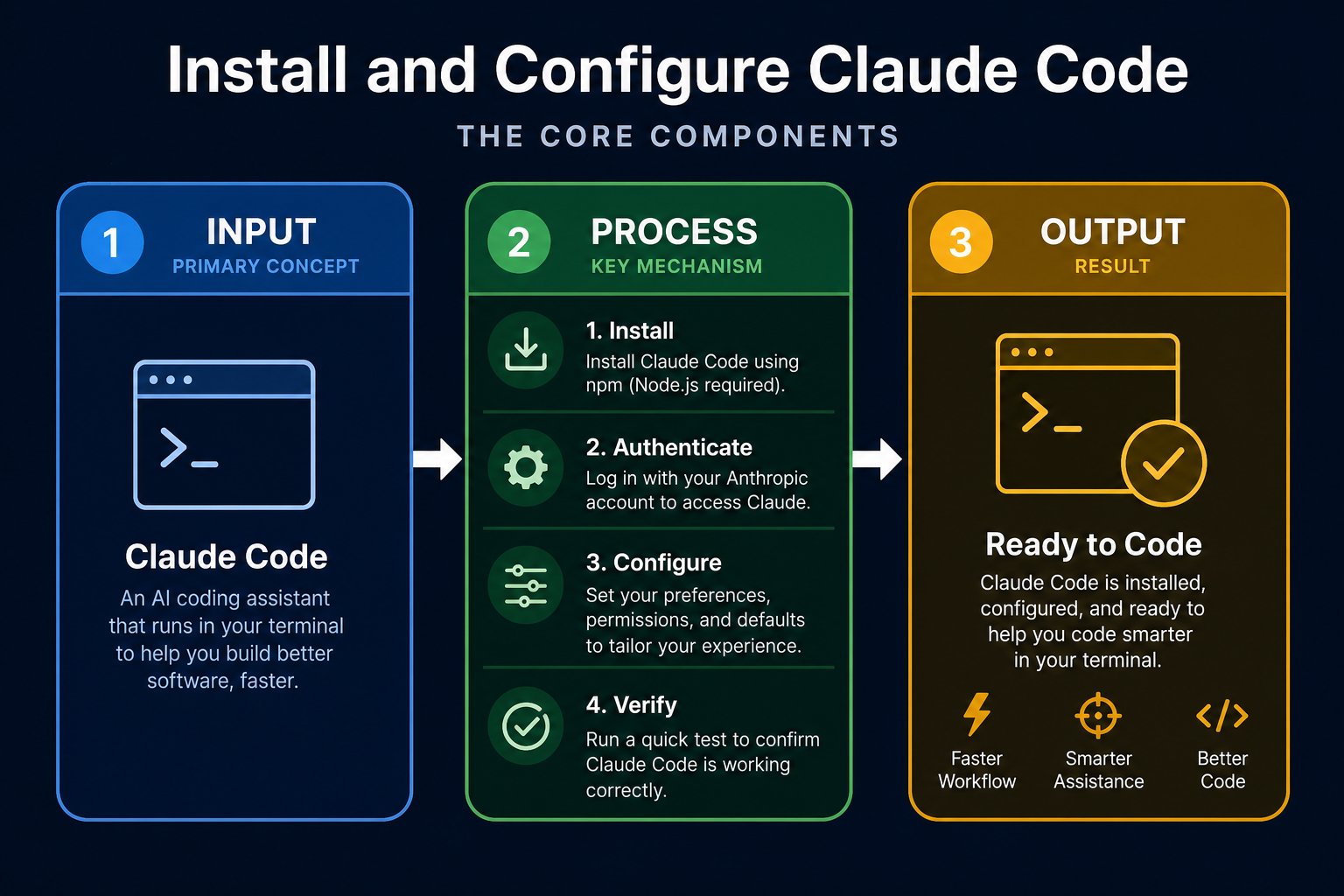
This diagram breaks down the core building blocks of Install and Configure Claude Code so you can see how each part connects.
Proper setup learn Claude Code's full potential, preventing errors and maximising efficiency.
This video shows the complete installation process. A smooth installation is key to avoiding later issues.
Plugin Installation Workflow
See the steps for installing the Claude Code plugin.
Where do you typically obtain the API key needed for Claude Code?
Plugin Settings
Configuring the Plugin
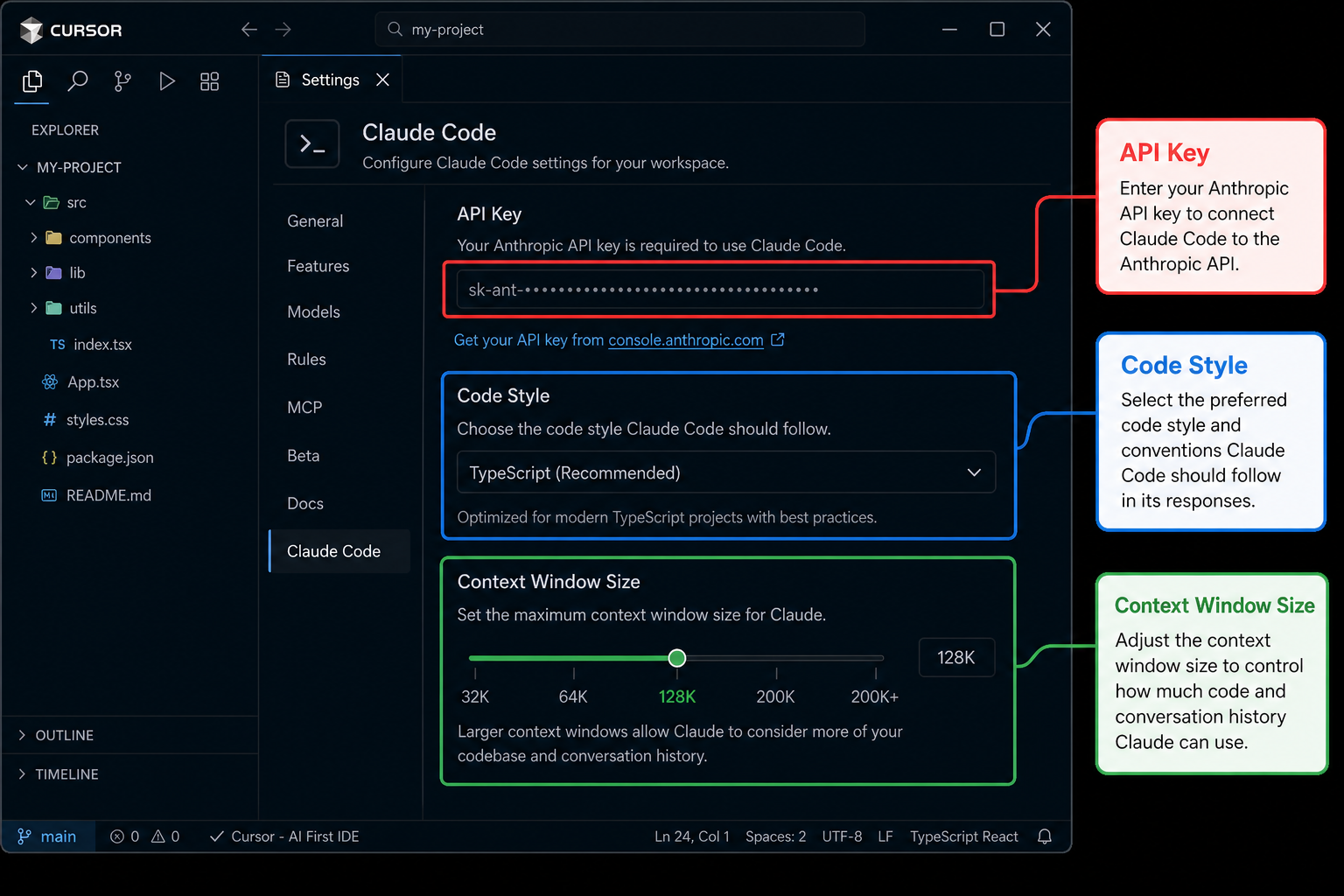
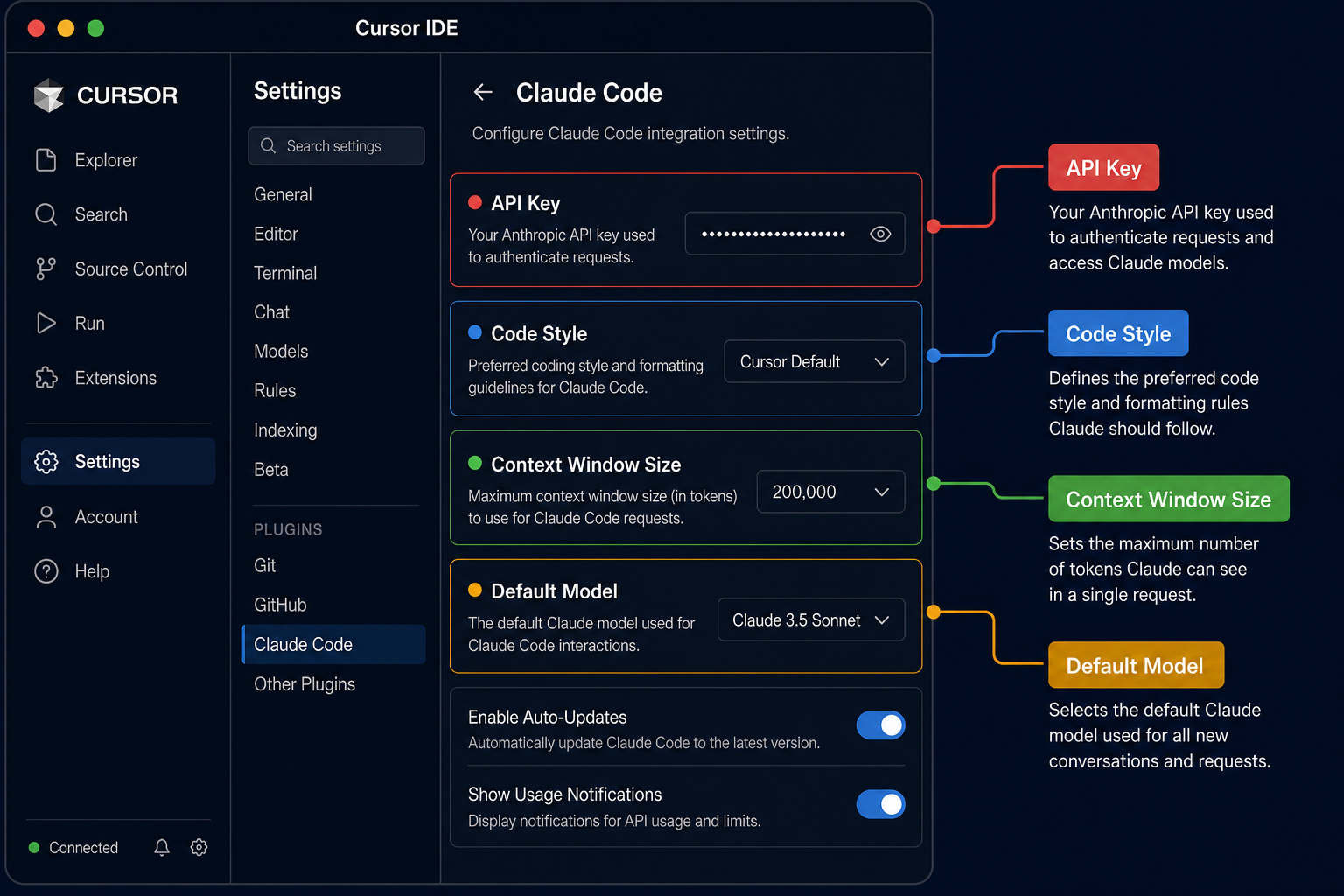
Enter your plugin installation. It allows the plugin to access Claude Code's services.">API key into the designated field in the plugin settings. This authenticates your installation and allows the plugin to access Claude Code's services.
Next, customise the settings to match your coding style and preferences. Adjust the context window size and select your preferred default model.
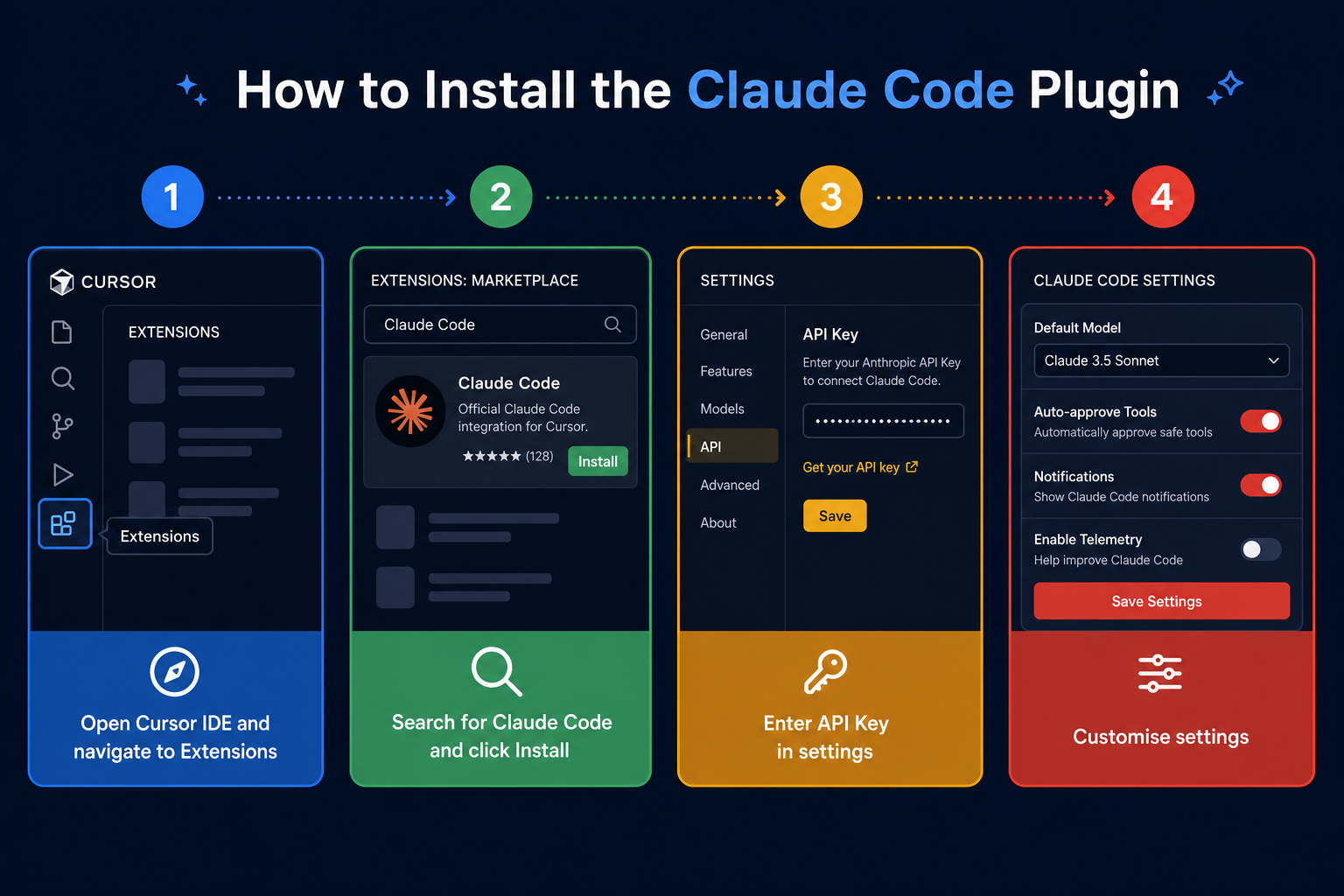
Each step is crucial for correctly setting up Claude Code. Proper configuration ensures optimal performance and integration with Cursor IDE.
Impact of Configuration Choices
Custom configuration enables Claude Code to better understand your project's structure. This leads to more accurate and relevant code suggestions.
Treat your API key like a password. Never share it publicly or commit it to version control.
Experiment with different context window sizes. A larger window allows Claude Code to consider more of your code, improving accuracy.
Adjust the code style settings to match your team's conventions. This ensures generated code is consistent with your existing codebase.
Troubleshooting
If the plugin isn't working, verify your plugin installation. It allows the plugin to access Claude Code's services.">API key is correct and active. Check the Cursor IDE console for error messages.
Ensure your internet connection is stable. Claude Code requires an active internet connection to function.
If you remember only four things…
API Key
Obtain your API key from the Claude Code website. This key authenticates your plugin installation.
Context Window
Adjust the context window size for optimal performance. Larger windows allow Claude Code to analyse more context.
Code Style
Customise code style settings to match your project. Consistent code is easier to maintain.
Troubleshooting
Verify your API key and internet connection. These are common causes of plugin malfunction.
Test Your Understanding
Write Prompt for Claude Code VS Code Setup
You're configuring Claude Code in VS Code. Write a prompt to get the exact code snippet for setting up your API key securely in a Python project.
You've successfully installed the Claude Code extension in VS Code. Now, you need to configure it by providing your API key, ideally stored in an environment variable or a `.env` file for security. You want Claude to provide the specific code snippets you'll need to add to your project's setup to securely access the API key and initialize the Claude Code client within a Python script. Your goal is to get ready-to-use code.
Term Glossary
4 verified conceptsClaude Code Ready
You now possess the skills to install and configure the Claude Code plugin, setting the stage for efficient AI-assisted development. This setup allows you to tailor Claude Code to your specific needs and coding preferences.
Proper configuration transforms Claude Code from a generic tool into a personalised coding assistant.
Now, let's explore how to use Claude Code to generate code efficiently and effectively, use its AI capabilities for rapid development.
Audio lesson recap
A concise audio summary of this lesson — great for reinforcing key concepts on the go.
Hear it discussed
About three minutes on the ideas in this lesson
Sterling
AI tutor
Vivienne
Sceptical challenger
Press play to start the discussion…
Full transcript · click any line to jump
Install and Authenticate Claude Code
Begin by installing the Claude Code plugin in Cursor IDE via the extensions marketplace. Authenticate your installation by entering your unique API key obtained from the Claude Code website.
Customise Settings for Optimal Performance
Tailor Claude Code's behaviour by adjusting the context window size and selecting your preferred default model. Proper configuration ensures accurate and relevant code suggestions, enhancing your development workflow.
Secure API Key and Troubleshoot Issues
Always treat your API key as confidential and never share it publicly or commit it to version control. If issues arise, verify your API key's correctness and ensure a stable internet connection.
Ask anything about Install and Configure Claude Code. Sterling will answer — concisely, and with his customary level of patience.