Cursor IDE Setup with Claude
Configure Cursor IDE to easily integrate with Claude Code for real-time code suggestions and auto-completion.
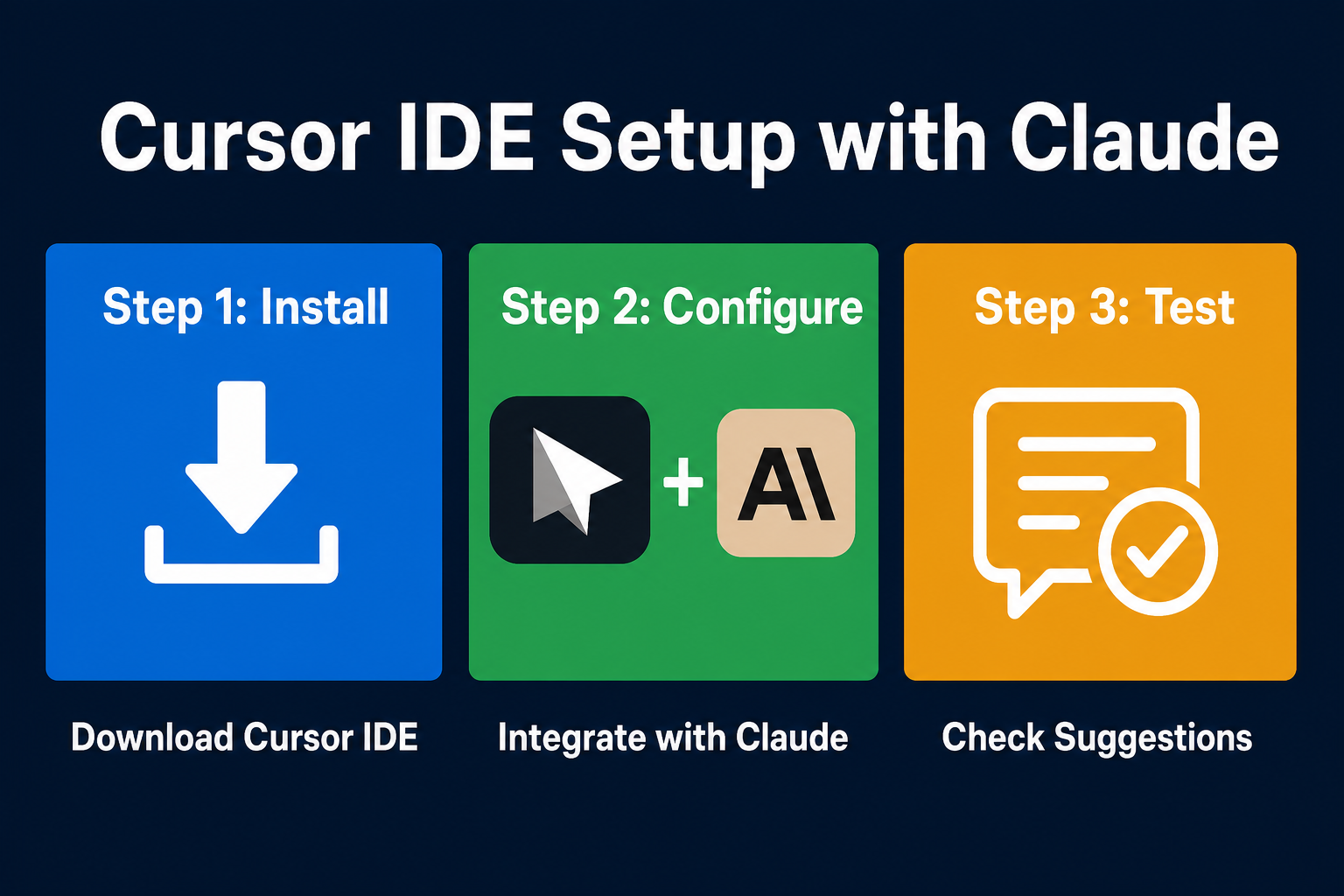
Setting Up Cursor IDE
First, download and install Cursor IDE from the official website. This IDE is designed to integrate easily with tools like Claude Code. Ensuring you have the latest version will help prevent any compatibility issues.
Next, configure your Claude Code account within Cursor. This involves obtaining your API key from Claude and adding it to Cursor's settings. Once configured, Cursor can access Claude's AI capabilities for code suggestions and auto-completion.
Cursor IDE and Claude Code together learn a new level of coding efficiency.
This diagram breaks down the core building blocks of Cursor IDE Setup with Claude so you can see how each part connects.
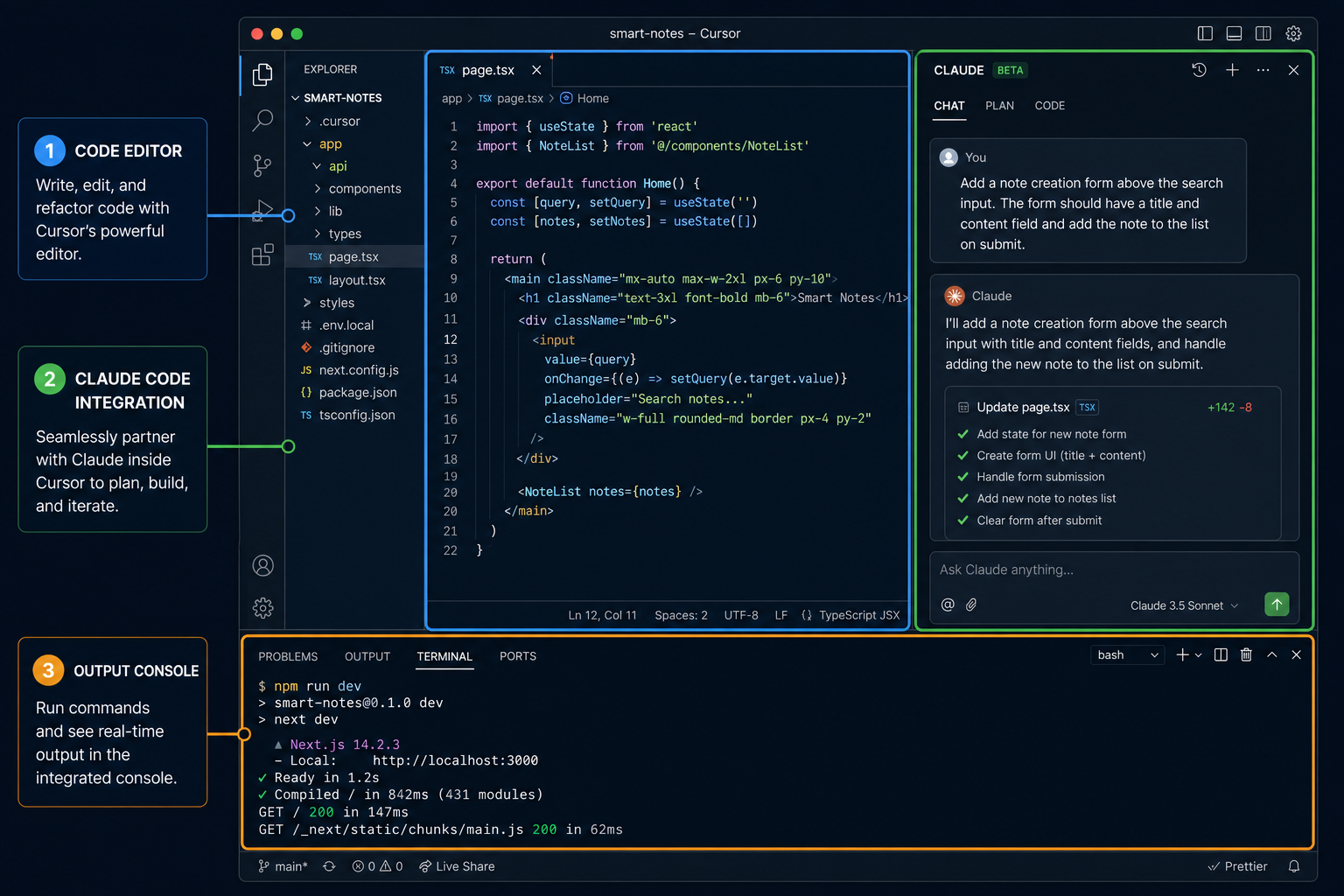
This video shows Claude Code integration in Cursor IDE. It demonstrates the ease of use and efficiency gains.
Cursor IDE Integration
See Cursor IDE configured with Claude Code. This speeds up development and improves code quality.
What do you predict is the biggest benefit of integrating Claude with Cursor IDE?
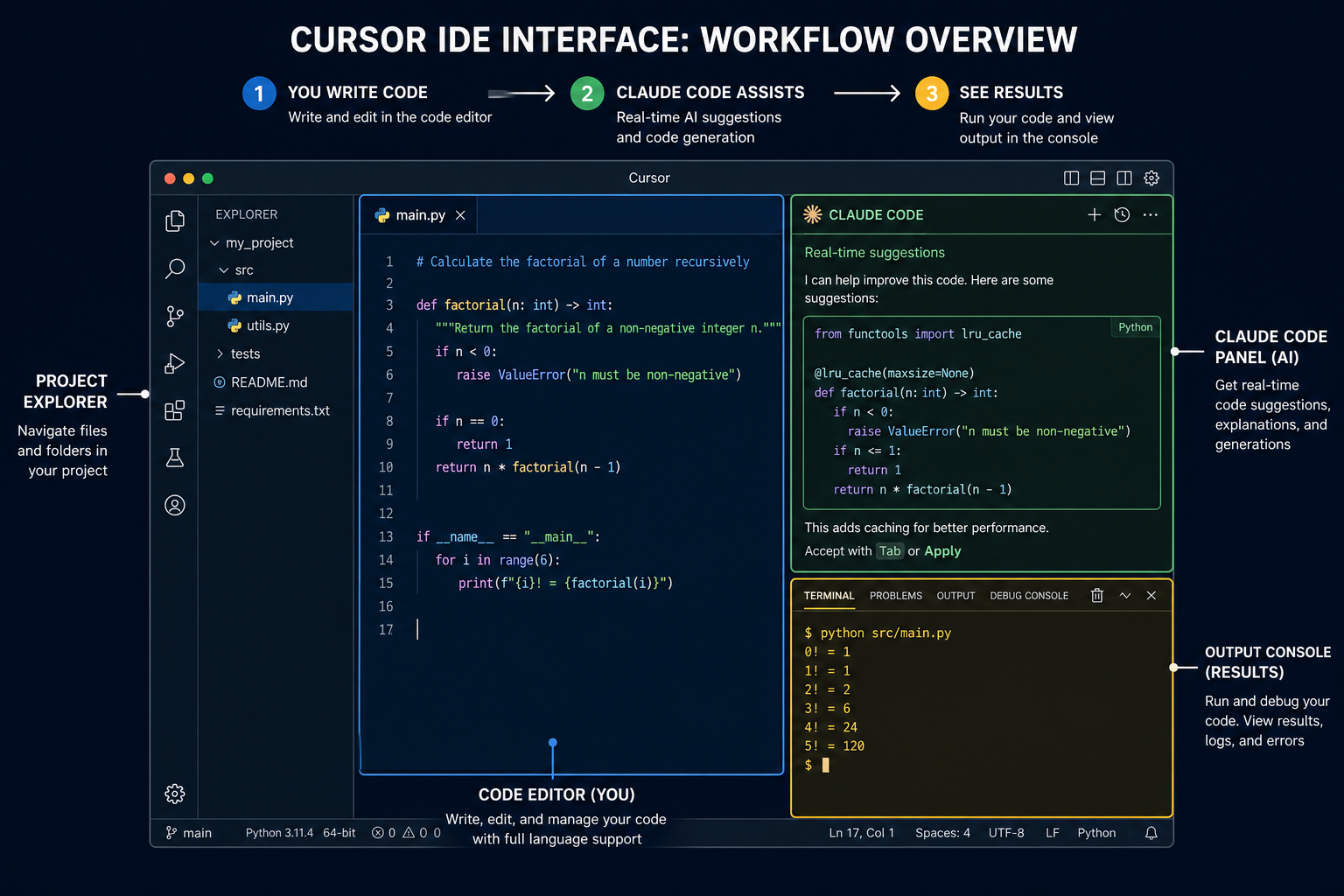
Integrated Workflow
Customising Cursor Settings
Optimise Cursor's settings to enhance your Claude Code experience. Adjust the code suggestion frequency and style to match your preferences. This ensures the AI assistance is both helpful and non-intrusive.
Explore Cursor's debugging features to further improve your workflow. Integrating Claude's debugging tools can significantly reduce the time spent identifying and fixing errors. This simplify process contributes to faster and more efficient development.
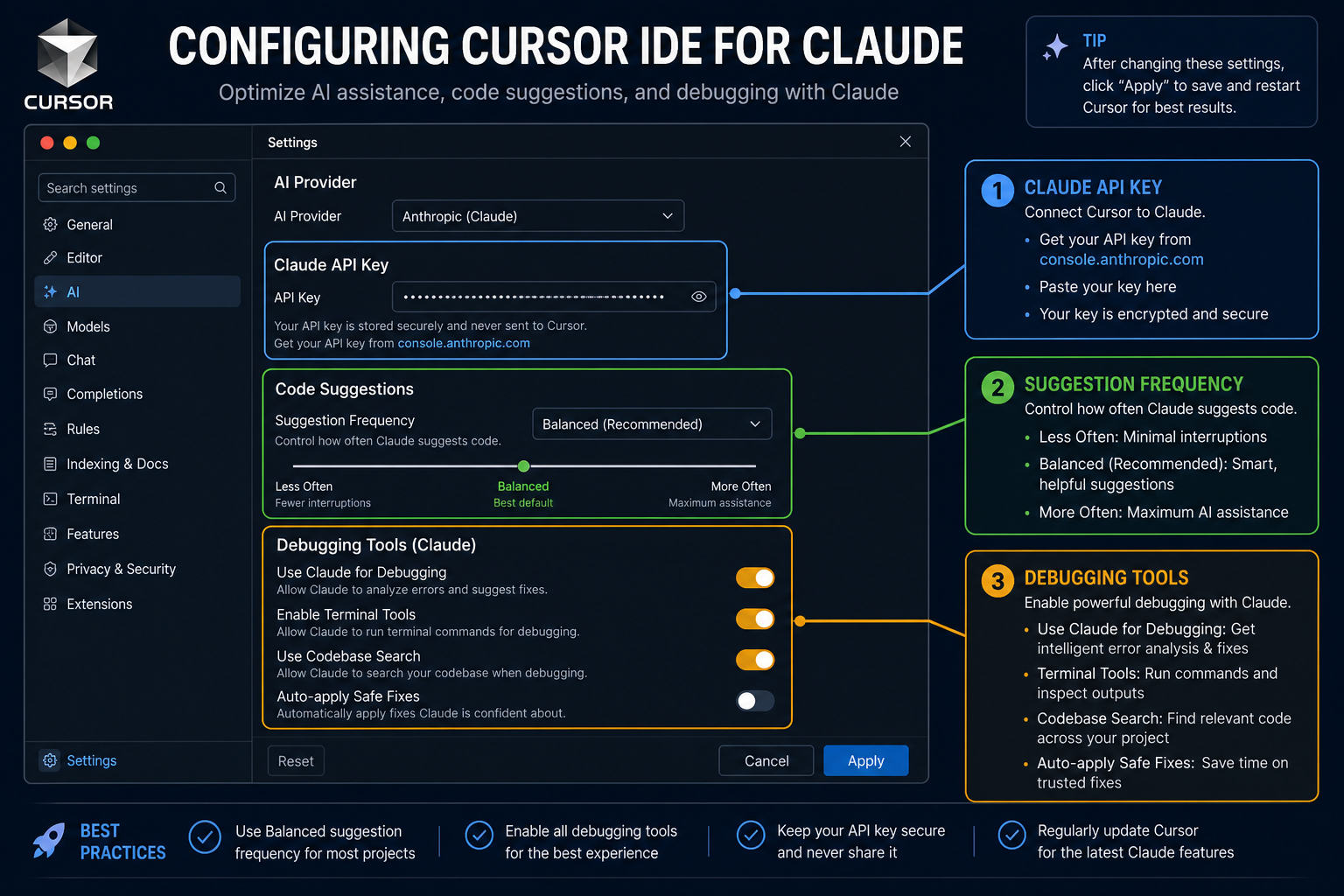
This visual illustrates the settings panel within Cursor IDE, focusing on the configuration options for Claude Code integration. Adjusting these settings ensures a seamless and efficient coding experience.
Code Completion: Before and After
This diagram contrasts the code completion process with and without Claude Code. It shows how Claude automates debugging and provides real-time suggestions, leading to faster development and fewer errors.
Claude Code provides instant feedback as you type. This helps catch errors early and improves code quality.
Automated code suggestions significantly speed up the development process. This lets you focus on higher-level tasks.
Integrated debugging tools make it easier to identify and fix errors. This reduces debugging time and improves efficiency.
This video shows Claude Code assisting in debugging within Cursor IDE. It highlights the efficiency and accuracy of the debugging process.
Debugging with Claude
See how Claude Code helps debug code in Cursor IDE. This identifies and fixes errors faster.
Integrating AI into Your Workflow
Integrating Claude Code into Cursor IDE represents a significant step towards AI-assisted development. This integration not only speeds up the coding process but also improves the overall quality of your code.
By customising Cursor's settings and use Claude's debugging tools, you can create a highly efficient development environment. This allows you to focus on innovation and problem-solving, rather than tedious manual tasks.
If you remember only three things…
Seamless Integration
Cursor IDE and Claude Code integrate directly, simplify your workflow.
Customisable Settings
Adjust settings to optimise Claude's assistance to your style.
Efficient Debugging
Claude's tools significantly cut debugging time.
Faster Development
Real-time suggestions speed up coding.
Test Your Understanding
Prompt Claude for Initial Project Setup
Write a clear and concise prompt for Claude within Cursor IDE to generate the initial files for a simple Flask project.
You've just launched Cursor IDE and confirmed your Claude integration is working. Your goal is to create a new Python Flask project. You want Claude to generate two files: `app.py` containing a basic Flask application with a single '/' route that returns 'Hello, Flask!', and a `requirements.txt` file listing Flask as a dependency. Your prompt should clearly specify the desired output and file structure.
Term Glossary
4 verified conceptsAI-Assisted Development learn
You now understand how to integrate Claude Code with Cursor IDE, simplify your coding. This enables faster, better development.
With Claude in Cursor, you're coding smarter.
Explore Claude Code's code review capabilities next.
Audio lesson recap
A concise audio summary of this lesson — great for reinforcing key concepts on the go.
Hear it discussed
About three minutes on the ideas in this lesson
Sterling
AI tutor
Vivienne
Sceptical challenger
Press play to start the discussion…
Full transcript · click any line to jump
Integrate Claude for enhanced coding workflows
Seamlessly integrate Claude Code with Cursor IDE to automate code completion and streamline debugging processes. This integration significantly boosts development speed and improves overall code quality.
Customise settings for optimal AI assistance
Adjust Cursor's settings, such as code suggestion frequency and style, to tailor Claude's assistance to your personal preferences. This ensures the AI support is both helpful and non-intrusive, enhancing your coding experience.
Leverage AI for faster, quality development
Utilise Claude's real-time feedback and integrated debugging tools to identify and fix errors more efficiently. This allows you to focus on innovation and problem-solving, rather than tedious manual tasks.
Ask anything about Cursor IDE Setup with Claude. Sterling will answer — concisely, and with his customary level of patience.